
How do I view student performance on a specific assignment?
When a 360 lesson, library text, or Target Lesson is assigned for students to complete digitally on CommonLit, you can view students' data on the Assignment Report. When you create an assignment for multiple classes, there will be an Assignment Report for each class. Additionally, there will be an Assignment Report for each small group assignment you create.
To get to an Assignment Report, click My Classes and find the assignment on your list of assignments. Click the name of the assignment and then choose the Assignment Report tab.
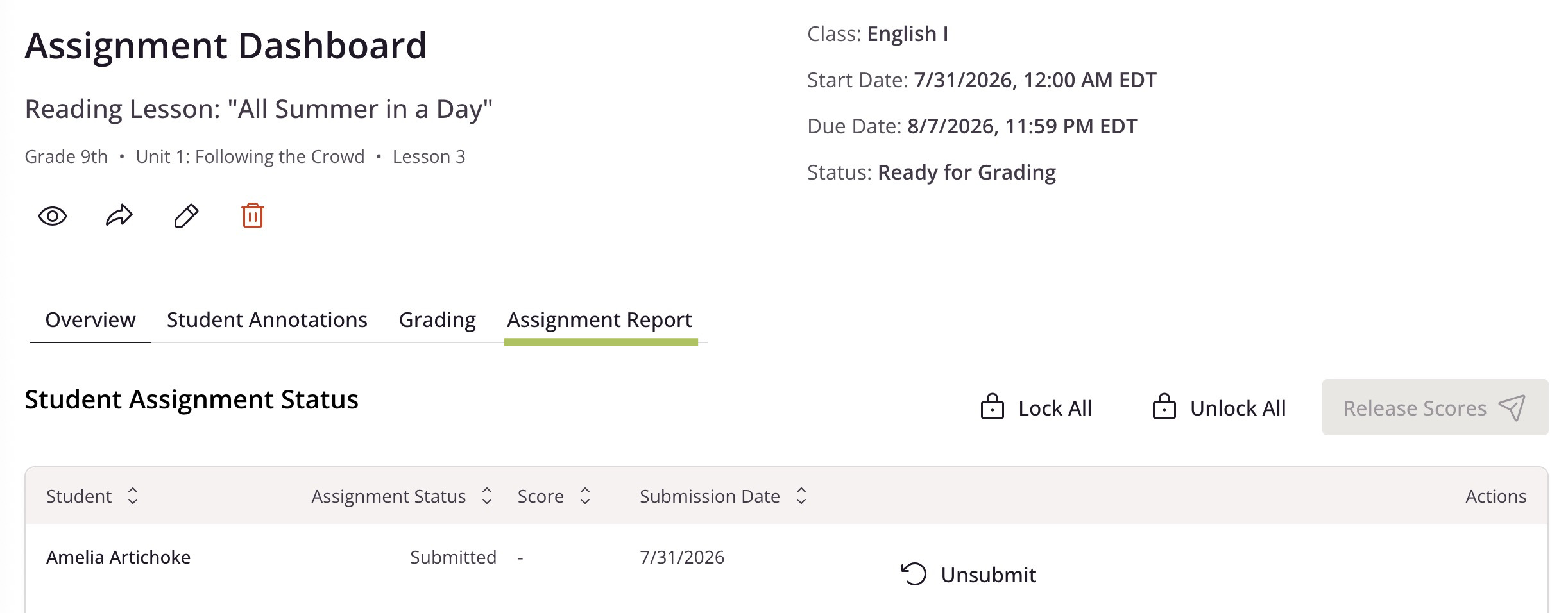
Assignment Reports include all student data for an assignment, such as how they performed on multiple-choice questions and their overall scores once short-answers have been graded (if assigned). Please note, you will only see the data for questions that were assigned. For example, if you assign a library text without any Assessment Questions, you will only see the Guided Reading Mode data (if enabled) and student annotations.
Assignment Reports look different depending on the type of assignment. Below, we'll walk through the Assignment Reports for both 360 and Target Lessons as well as library text assignments.
360 and Target Lessons
Overall Class Data
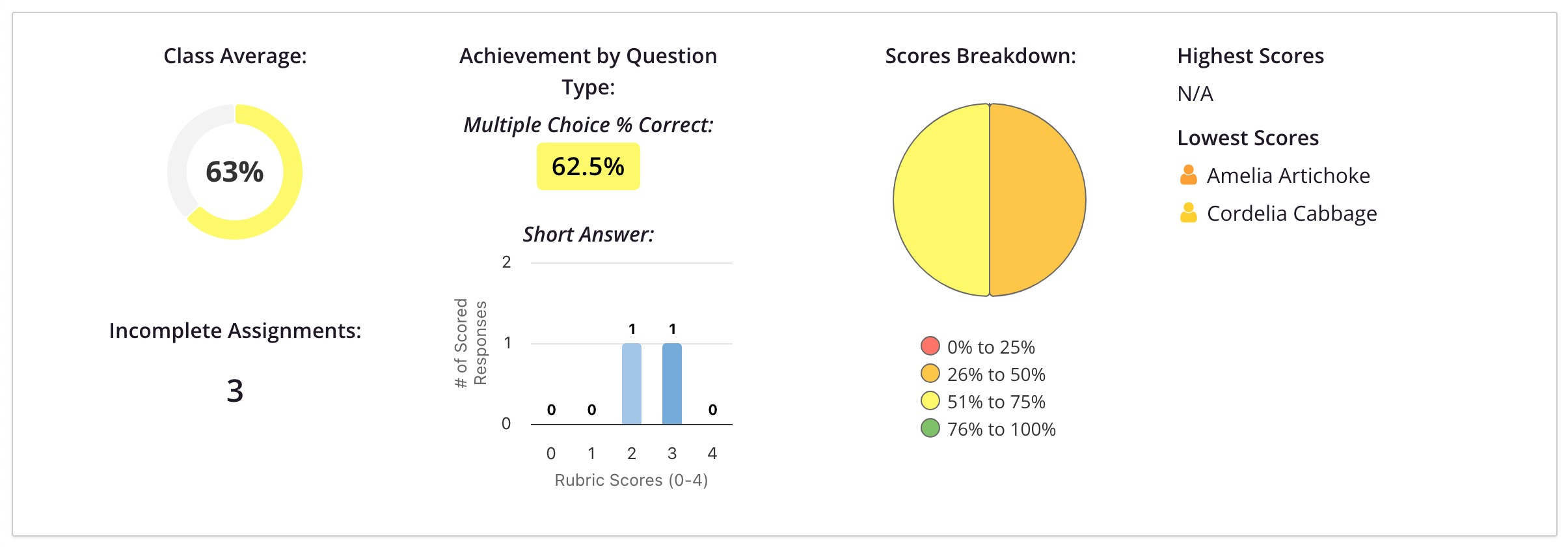
Overall Class Data is the first section you will see. It is automatically expanded to be visible upon opening the report. At the top of this section is a high-level overview of students' performance, such as the assignment average for the class as well as the multiple choice average, short answer average, and how scores broke down in the class and amongst specific students.
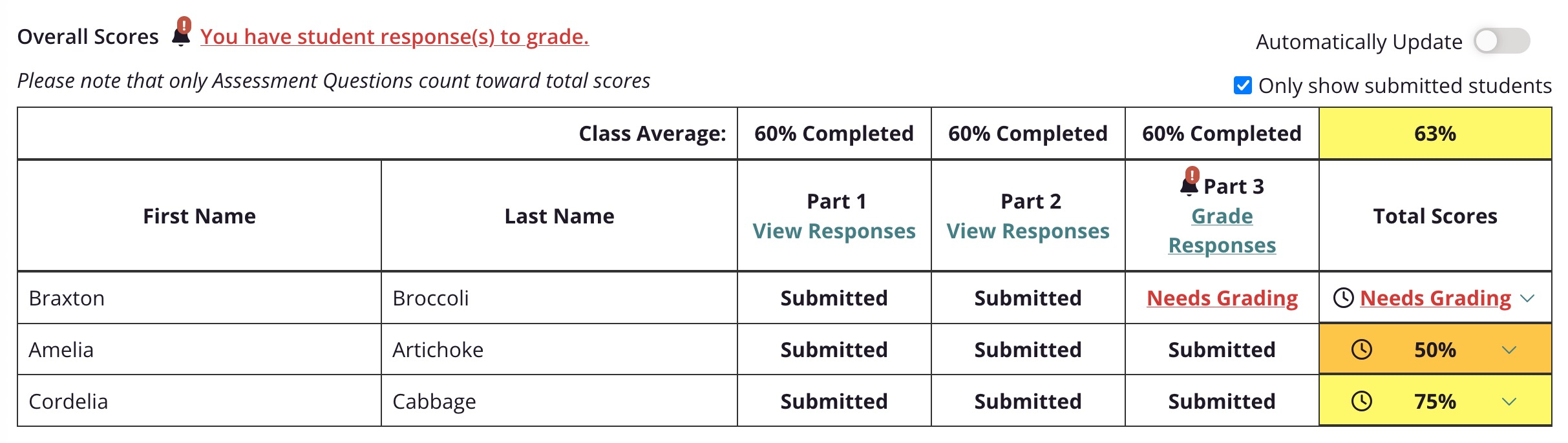
Directly below the high-level overview is the Overall Scores table. This table displays the overall average for the assignment, students' individual overall scores, and the average for each section on the assignment. For sections without graded Assessment Questions, you will be able to see whether or not a student submitted answers for questions in that section.
The default for this table is to only display submitted students, but you can uncheck "Only show submitted students" to view all students. Additionally, a student's overall score will not be displayed if they have a short answer that needs to be graded, but there will be a link to go to their response on the Grading page.
Performance by section
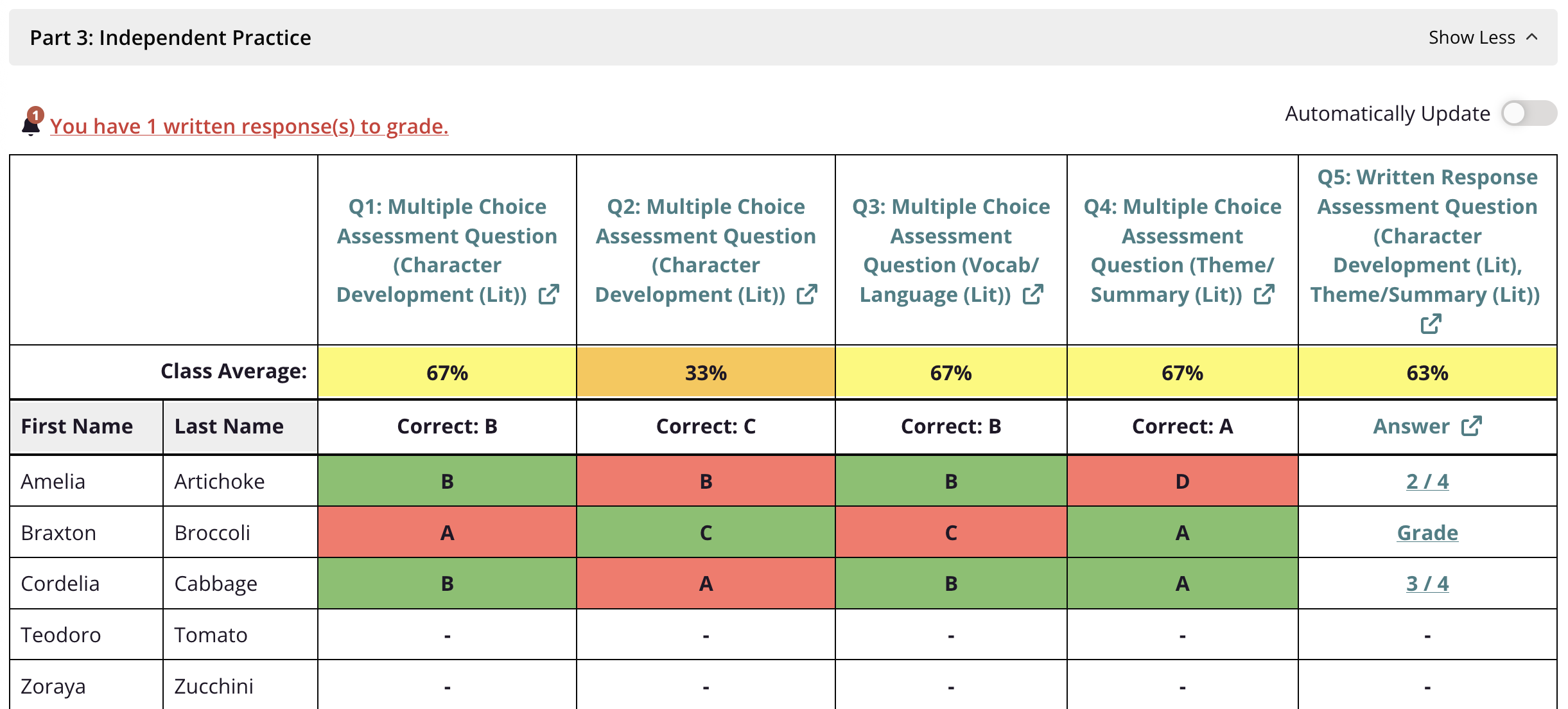
In addition to the Overall Class Data, 360 and Target Lesson Assignment Reports include individual sections for each part of the assignment. For both 360 and Target Lessons, the section that contains the Assessment Question data, is automatically expanded.
For 360 Lessons, this section is labeled "Independent Practice," and for Target Lessons, the section is labeled "Assessment." You can view how students answered each question and whether or not they answered correctly. If the short answer was assigned, you will see their score, if graded, or a link to grade their response. This table also includes the class average for each Assessment Question.
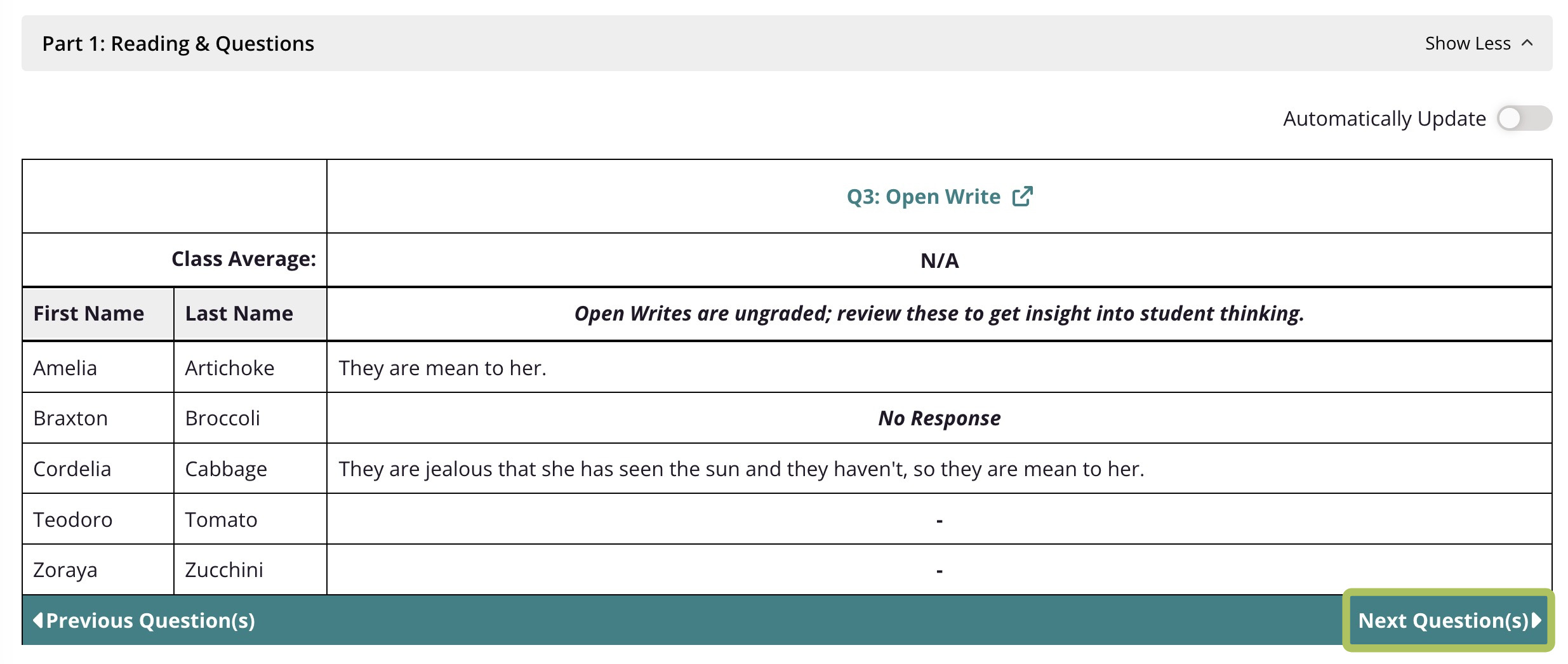
In addition to the section with Assessment Question performance, the Assignment Report includes tables for other sections on the assignment. Simply click Show More to expand a question. For example, if you want to view students' responses on during reading questions click Show More for Reading & Questions (or Reading and Answering Questions). Then, navigate through questions by clicking Next Question(s) in the bottom right. Please note, responses in these sections cannot be graded.
📁 Want to download an Assignment Report for your records? Click Download report (with the cloud icon) at the top of the page. This report will include the data from the Assessment Questions section.
Library text assignments
At a Glance
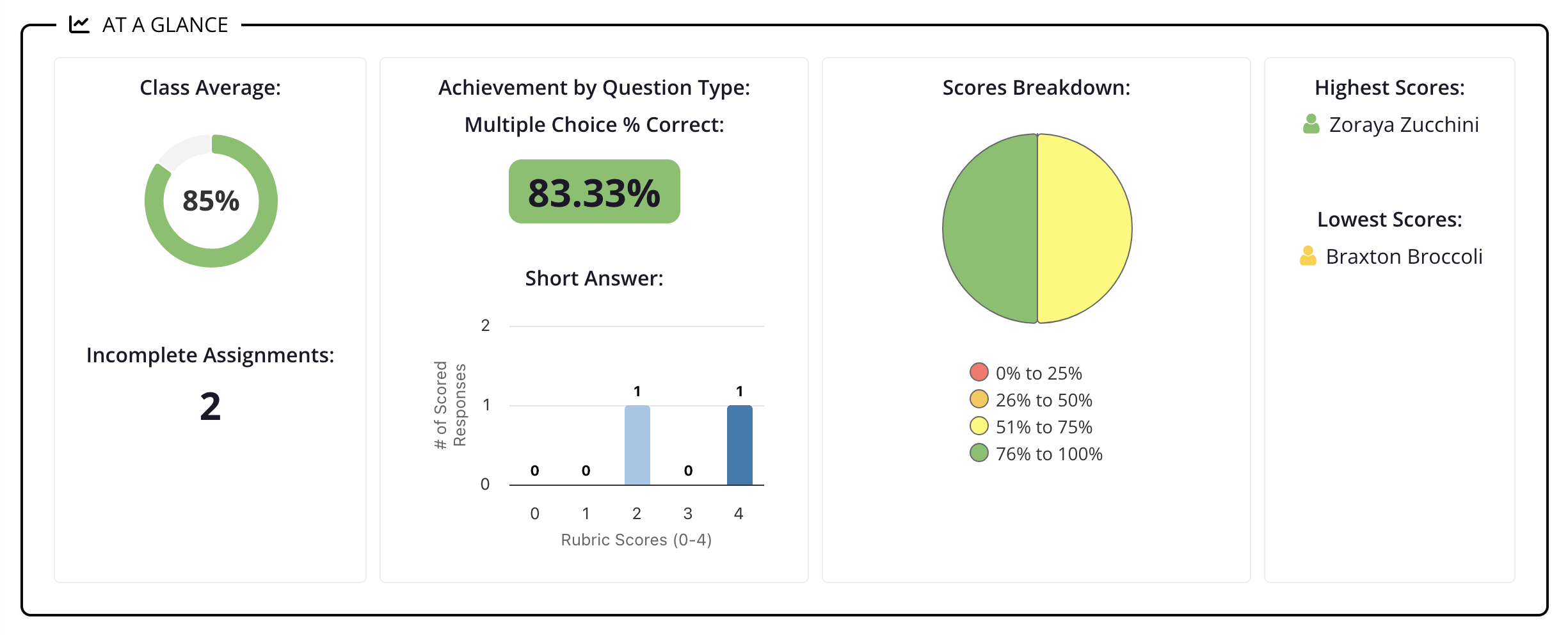
The At a Glance provides a quick overview of student performance on an assignment. In this section, you'll see the overall assignment average for the class, the multiple choice average, and a chart breaking down performance on the short answer. You can also quickly check how many students still need to complete the assignment.
Attempts Summary: Guiding Questions
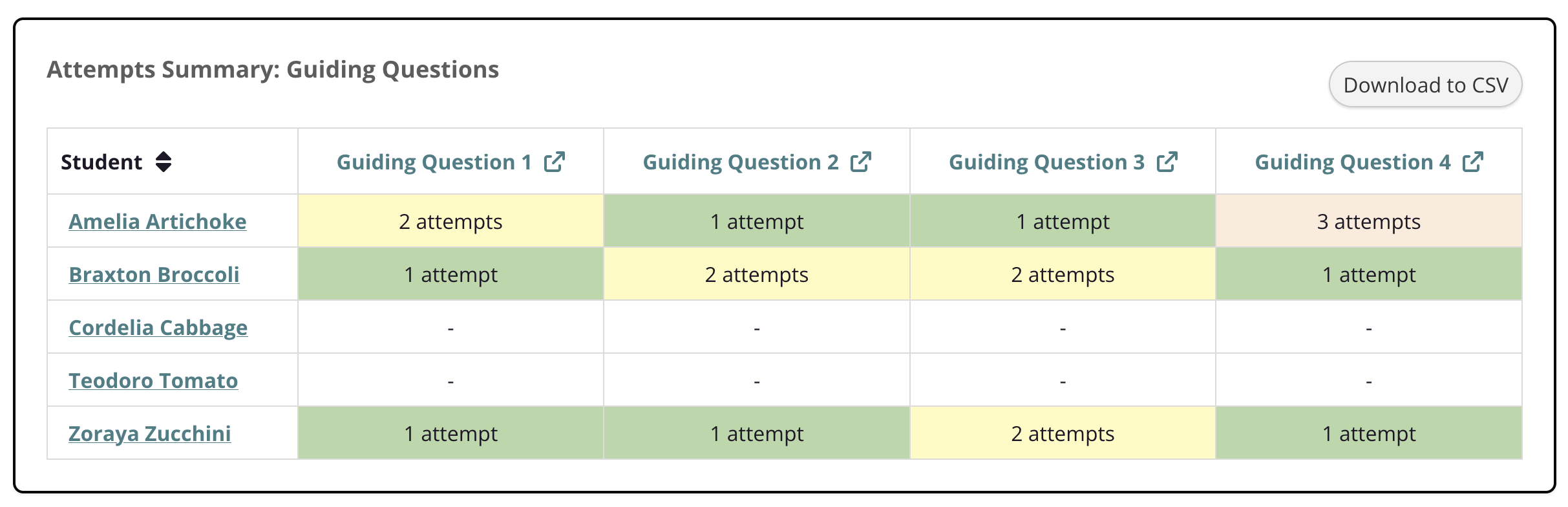
If Guided Reading Mode was enabled, you will see the Guiding Questions section. This table shows how many attempts it took for a student to select the correct answer for each question. If you'd like a copy of this data for your records, click Download to CSV.
Assessment Results
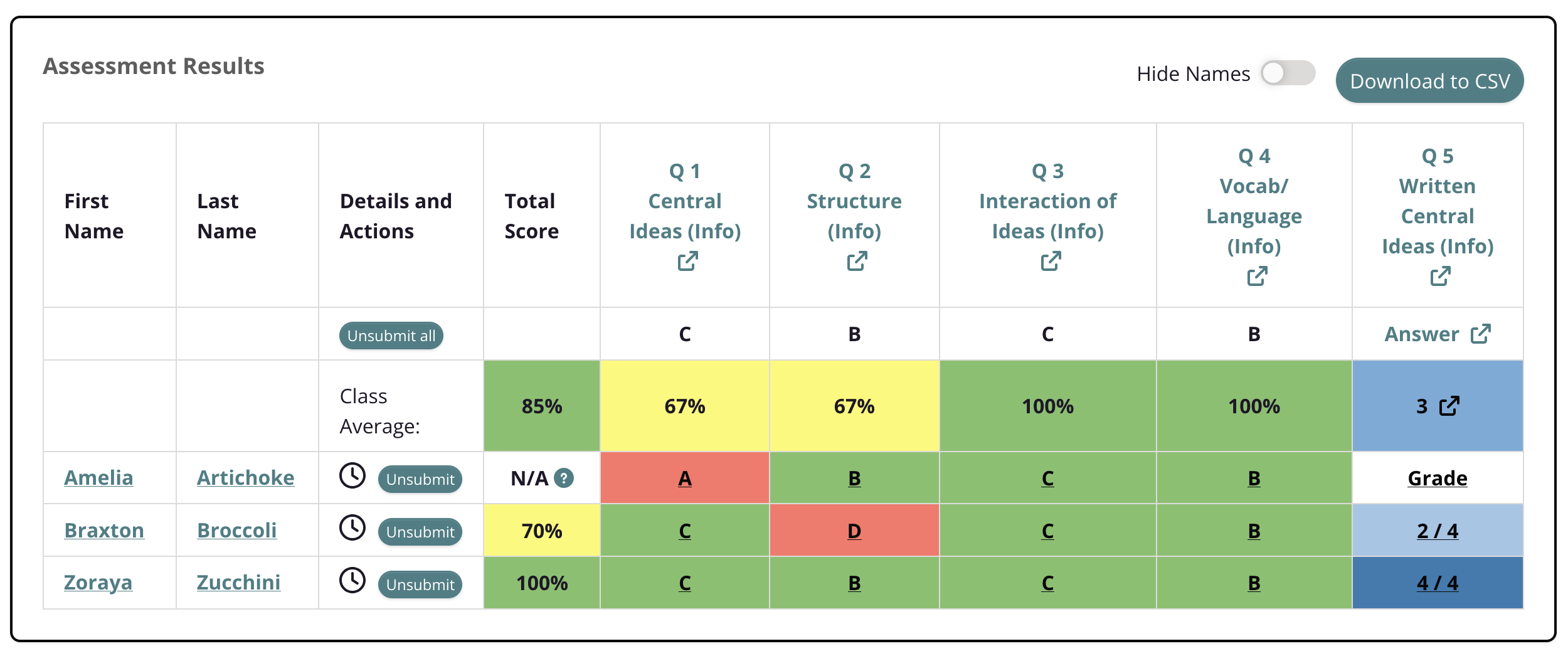
The Assessment Results section contains the data for how students performed on the Assessment Questions, which determines their overall score. In the table, you will see a student's overall score, how students answered each question, and whether or not they answered correctly as well as the overall class average for the assignment and each individual question.
If you assigned the short answer, you will see a student's score or a link to grade their response. Please note, you will not see an overall score for a student until their short answer response has been graded.
If you'd like a copy of this data for your records, click Download to CSV.
💡 If you want to dive into a specific student's data across assignments, click their name in the Assessment Results section to go to their Individual Student Performance page.