
How do I add or remove students from my class?
Overview
We understand that class rosters change throughout the year or semester, and you may need to add or remove students from a class in CommonLit. The process for adding or removing students depends on how the class was created.
A note on removing students
Removing a student from a class will not permanently delete the student's account, and you will still be able to view that student’s performance data by clicking View Data in the Removed Students table. If you are moving a student from one class to another, please note that their assignment progress and data will not transfer to the new class. As such, we recommend grading any outstanding assignments and downloading Assignment Reports for your records before moving the student to a new class.
Select your class type for instructions:
- Manually-created
- Google Classroom
- Clever
- ClassLink (available for PRO and PRO Plus customers)
- Canvas (available for PRO and PRO Plus customers)
Manually-created
If you created classes manually, students can join the class using a class code, and you can manually remove students if they are no longer enrolled.
Adding students
Every manually-created class has a unique class code that students can use to join the class. If a student needs to join your class and they already have a CommonLit account, they can log into CommonLit and enter the class code on their My Account and Classes page. Alternatively, if they don't have an existing CommonLit account, they can go to www.commonlit.org/enroll and enter the class code to start the sign-up process.
Fore more information, please see these FAQs:
- How do students create their accounts if they're not imported from an integration like Google Classroom or Clever?
- How can a student with an existing account join my manually created class?
🖨️ For students new to CommonLit, print the How to Set Up Your CommonLit Student Account handout and write in your class code.
Removing students
You can manually remove students from CommonLit classes where you are the primary teacher. To remove a student:
- Click My Classes (the teacher) in the menu on the left
- Choose the Manage Classes tab
- Select the student's class to navigate to the Manage Students page
- Find the student you wish to delete and click the remove user icon to the right of View Data in the Actions column
- Confirm by clicking Remove Student

Once you remove the student, they will be moved to the Removed Students table at the bottom of the Manage Students page. If you do not want to preserve a record of the student's former enrollment or data in your class, you can permanently remove the student from the class by clicking the trash can icon.
Google Classroom
Classes imported from Google Classroom do not update automatically, so you'll need to sync the class or manually remove students to update the class roster.
Adding students
You will need to first update your Google Classroom roster before adding new students to your CommonLit class. You can add these students to your Google Classroom class on the People page. For more information, please see this Google Classroom Help article: Invite students to your class.
Once students are added to a class in Google Classroom, you can import them into the class in CommonLit by clicking My Classes (the teacher) in the menu on the left, selecting the Manage Classes tab, and clicking the Sync button for their class. After a minute, refresh the page and click into the class to see the updated roster

🖨️ Students with new accounts or accounts that were not previously connected to Google Classroom will need to complete a few extra steps to finish setting up their accounts. For step-by-step instructions for students, you can share the How to Log Into CommonLit Using Google handout.
If a student was not imported as expected, check to confirm they accepted the invite to join in Google Classroom. Students will not be imported until they accept the invite. If they have accepted the invite, check your email to see if you received an email letting you know they could not be imported because their account in Google is missing a last name or their school email belongs to an educator account.
If you are still having trouble importing a student, we're happy to help. For assistance, please email help@commonlit.org with the student's name, class, and school email.
Removing students
Syncing will add students, but it will not remove students who are no longer in the class on Google Classroom. To remove a student:
- Click My Classes (the teacher) in the menu on the left
- Choose the Manage Classes tab
- Select the student's class to navigate to the Manage Students page
- Find the student you wish to delete and click the remove user icon to the right of View Data in the Actions column
- Confirm by clicking Remove Student

Once you remove the student, they will be moved to the Removed Students table at the bottom of the Manage Students page. If they rejoin the class and need to be added back, simply sync the class. Alternatively, if you do not want to preserve a record of the student's former enrollment or data in your class, you can permanently remove the student from the class by clicking the trash can icon.
Clever
Classes imported from Clever are controlled by the integration, so students cannot be added or removed manually. Instead, these classes are automatically synced with Clever to add or remove students. If you are a School Essentials PRO or PRO Plus customer and your school uses the premium Clever integration, your rosters will sync with Clever whenever changes are made in Clever. If your school uses the free Clever integration, your rosters will be synced weekly on Saturday evenings to add or remove students.
However, all teachers with Clever-imported rosters can manually request a sync at any time. A manual sync will update your rosters in CommonLit with the data being shared in Clever. To request a manual sync, go to the Manage Classes page and click the Sync with Clever button at the top of the page. Please note, it can take up to 15 minutes for a sync to process.
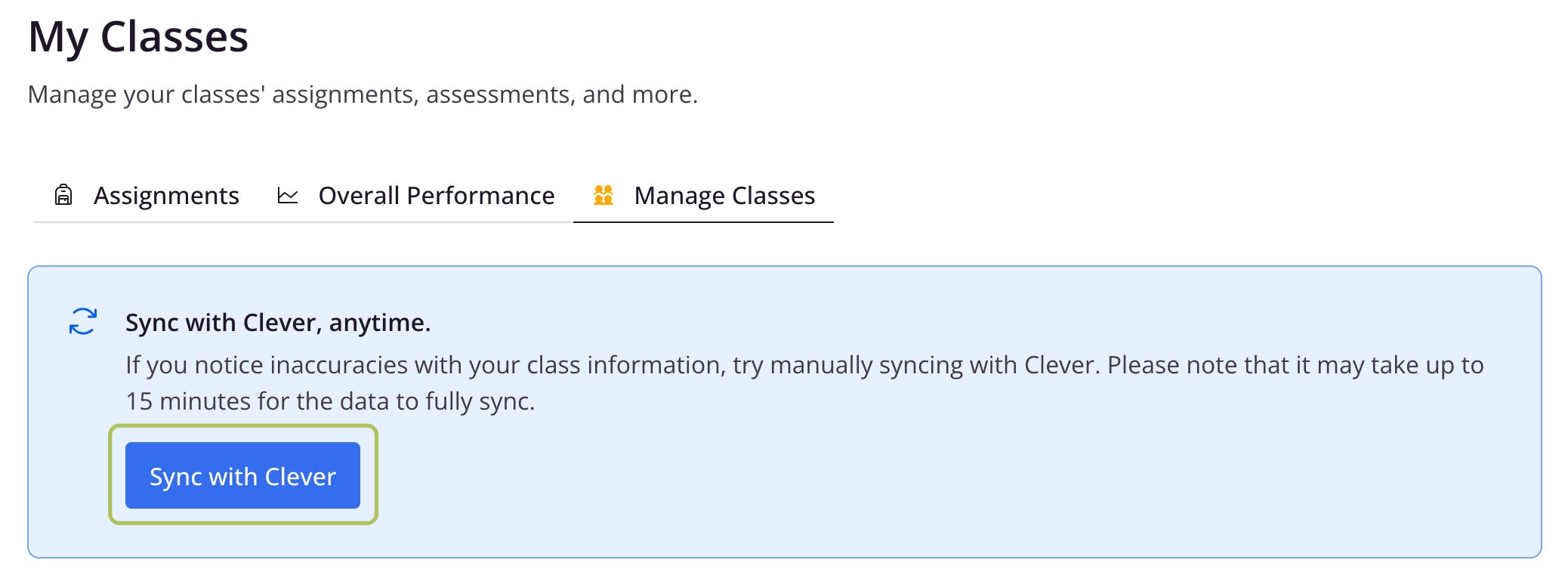
If your student has not been added or removed after 15 minutes, double check to confirm the student was added or removed from the class. If not, you will need to contact your Clever administrator to request they update the roster in Clever.
If the student has been added or removed, please confirm you are syncing the correct class For example, you may have both 1st and 2nd semester classes, and only the current semester's roster has been updated in Clever. If you only see one version on your CommonLit account, check your Hidden Classes to make sure the correct class has not been hidden.
If you are having trouble updating a roster, we're happy to help. For assistance, please email help@commonlit.org with the student's name, class, and school email.
ClassLink
This section is intended for School Essentials PRO and PRO Plus customers.
Classes imported from ClassLink are controlled by the integration, so students cannot be added or removed manually. Instead, these classes are automatically synced with ClassLink to add or remove students. CommonLit syncs with ClassLink nightly, so any changes made in ClassLink should be reflected in CommonLit the next day.
However, you can manually request a sync with ClassLink at any time. A manual sync will update your rosters in CommonLit with the data being shared in ClassLink To request a manual sync, go to the Manage Classes page and click the Sync with ClassLink button at the top of the page. Please note, it can take up to 15 minutes for a sync to process.
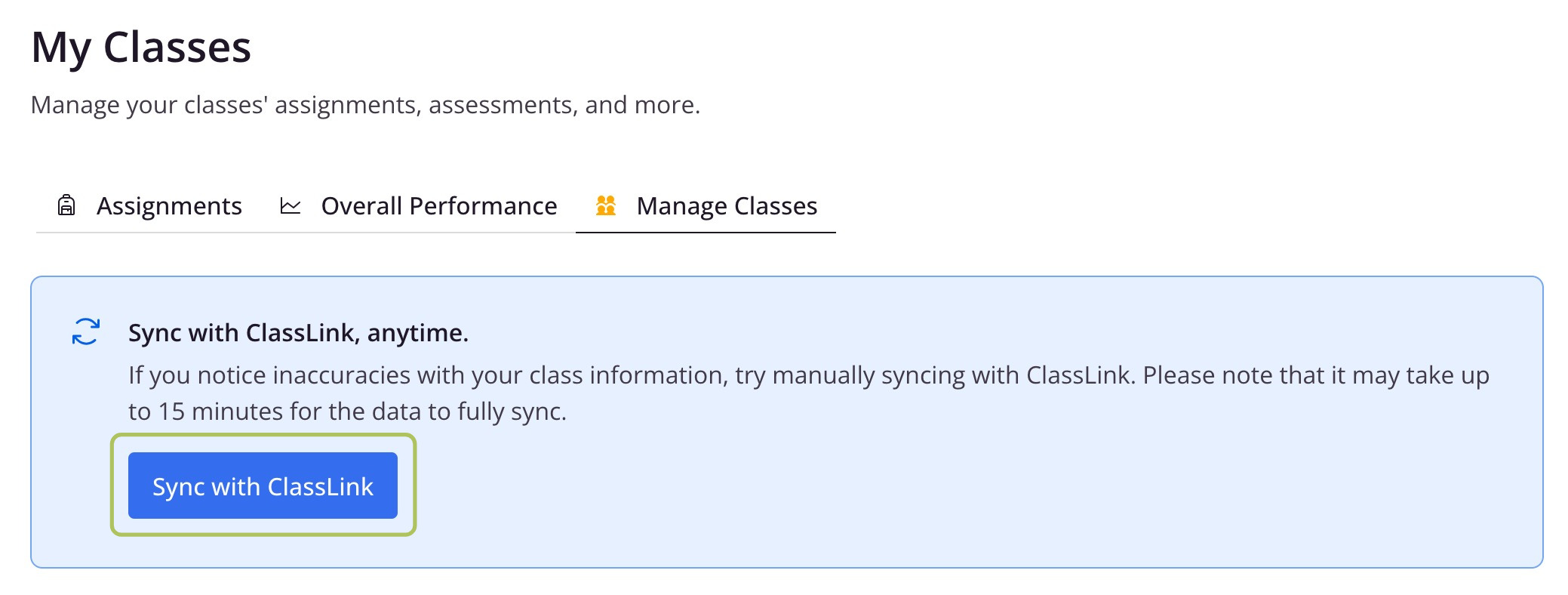
If your student has not been added or removed after 15 minutes, double check to confirm the student was added or removed from the class. If not, you will need to contact your ClassLink administrator to request they update the roster in ClassLink.
If the student has been added or removed, please confirm you are syncing the correct class For example, you may have both 1st and 2nd semester classes, and only the current semester's roster has been updated in ClassLink. If you only see one version on your CommonLit account, check your Hidden Classes to make sure the correct class has not been hidden.
If you are having trouble updating a roster, we're happy to help. For assistance, please email help@commonlit.org with the student's name, class, and school email.
Canvas
This section is intended for School Essentials PRO and PRO Plus customers.
Classes imported from Canvas do not update automatically, so you'll need to manually sync the class to add or remove students if rosters have been updated in Canvas. If a student has been added in Canvas and has an existing CommonLit account with their school email, their account will be added to your class. If a student does not yet have an account, syncing the class will create an account for them.
To sync your class, click My Classes (the teacher) in the menu on the left and choose Manage Classes. Locate the class on your Manage Classes page and click the Sync button.

Once you have synced the class, refresh the page and click into the class to confirm the roster was updated. If syncing did not add or remove the student as expected, please double check the People page for the class in Canvas to confirm the student was added to or removed from the correct class.
If you are having trouble updating a roster, we're happy to help. For assistance, please email help@commonlit.org with the student's name, class, and school email.
Interested in integrating CommonLit with ClassLink, Clever, or Canvas at your school? Check out School Essentials PRO to save time and get set up quickly. Learn more about CommonLit's integrations here.