
How do my students log into CommonLit?
Overview
How students log into CommonLit depends on how their account was created, if they have a Google email on their account, and if they are connected to a rostering integration like Clever or ClassLink. In this article, we will cover the different ways students can log in depending on these factors.
For detailed instructions on how students can log into CommonLit, select your students' account type:
- Manually-created student accounts without a Google email
- Student accounts with a school-issued Google email
- Student accounts imported from Clever
- Student accounts imported from ClassLink (available for PRO and PRO Plus customers)
- Student accounts connected to Canvas (available for PRO and PRO Plus customers)
A note on logging in with Google
Regardless of how a student's account was created, they can log in with Google if they have a Google/Gmail email address on their account. The email may use your school's email domain and it does not have to be a functional email to enable Google Single Sign-on (SSO). If your student did not add an email or used a personal email when signing up, you can update the email on their account by going to the Manage Classes page, choosing their class, and clicking into the Email field for that student to edit their email.
Manually-created student accounts without a Google email
If your classes are manually-created and your students do not have a Google email listed on their account, they will need to go to www.commonlit.org/user/login and sign in with their username and password.
If a student forgets their username, you can find it in in the Username column on the Manage Students page for their class. To get to the Manage Students page, click My Classes in the menu on the left, choose Manage Classes, and select the student's class. You can also print or download a list of students and their usernames in any class to easily refer to if a student forgets their username. To do so, click the Print Class Roster above the list of students. You can then print or save the list as a PDF.
If a student forgets their password, follow the steps below to help them reset their password:
- Go to the Manage Students page by clicking My Classes > Manage Classes and choosing their class
- Click Reset in the Password column for that student
- Have the student go to www.commonlit.org/user/login and enter their username and the temporary password (Note: The temporary password is all lowercase, and passwords are case-sensitive. If a student is having trouble using the temporary password, try entering it for them exactly as it appears in the Reset Password window.)
- The student will see a Your Account Needs Updating page. They must enter a new, unique password. We recommend students use two unrelated words for a secure password that is easy to remember. Once they click Save changes, they will be all set!
ℹ️ If your student creates a duplicate account because they are unable to log into their existing account, you can merge duplicate student accounts if they are enrolled in the same class. For more information, see: What should I do if a student has created more than one account?
Student accounts with a school-issued Google email
If you imported your classes from Google Classroom, students' accounts will automatically have their school-issued Google email address. Additionally, students can add their Google email address when signing up, or students imported from another integration like Clever may have Google emails on their accounts. As long as the email on the student's account is a school-issued Google email, they can log in with Google by going to www.commonlit.org/user/login and clicking the Log in with Google option.
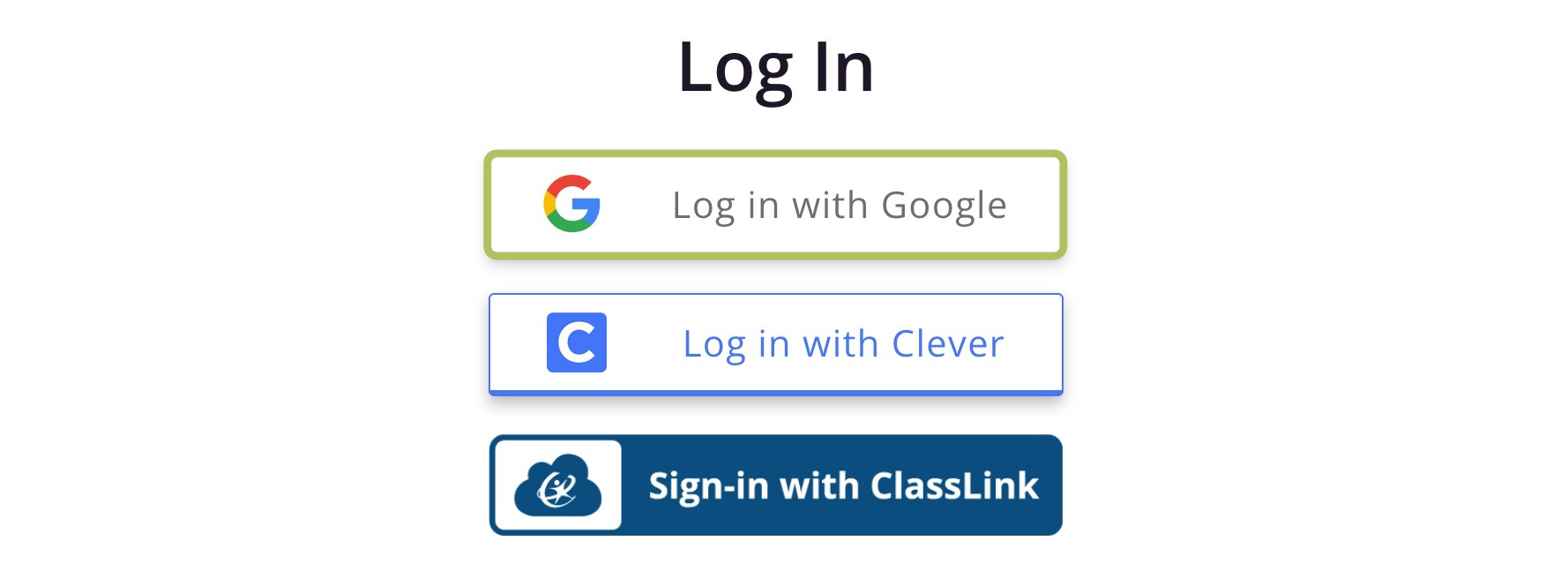
If your student gets an error message that there is no account under their email, check the Manage Students page to confirm their correct school-issued Google email is on their account. If not, you can click into the Email column to edit their email.
If your student gets an error message that Google access is blocked, this indicates your school or district does not currently have CommonLit added to the list of permitted apps within your Google Suite. To resolve this, you will need to reach out to your GSuite admin and ask them to add CommonLit to the permitted apps for your district's Google Suite. If needed, you can provide the instructions included in this Google support article to your GSuite admin.
Once CommonLit has been added, you and your students shouldn't experience any further issues logging in with Google.
ℹ️ Did you just import students from Google Classroom for the first time? Share this handout with students to help them log in and finish connecting their account to Google Classroom.
Student accounts imported from Clever
If your classes are imported from Clever, all students in your Clever-imported classes will be connected to Clever and able to log into CommonLit with Clever. Students can log in with Clever by clicking CommonLit icon on their Clever dashboard or by going to www.commonlit.org/user/login and choosing the Log in with Clever option.
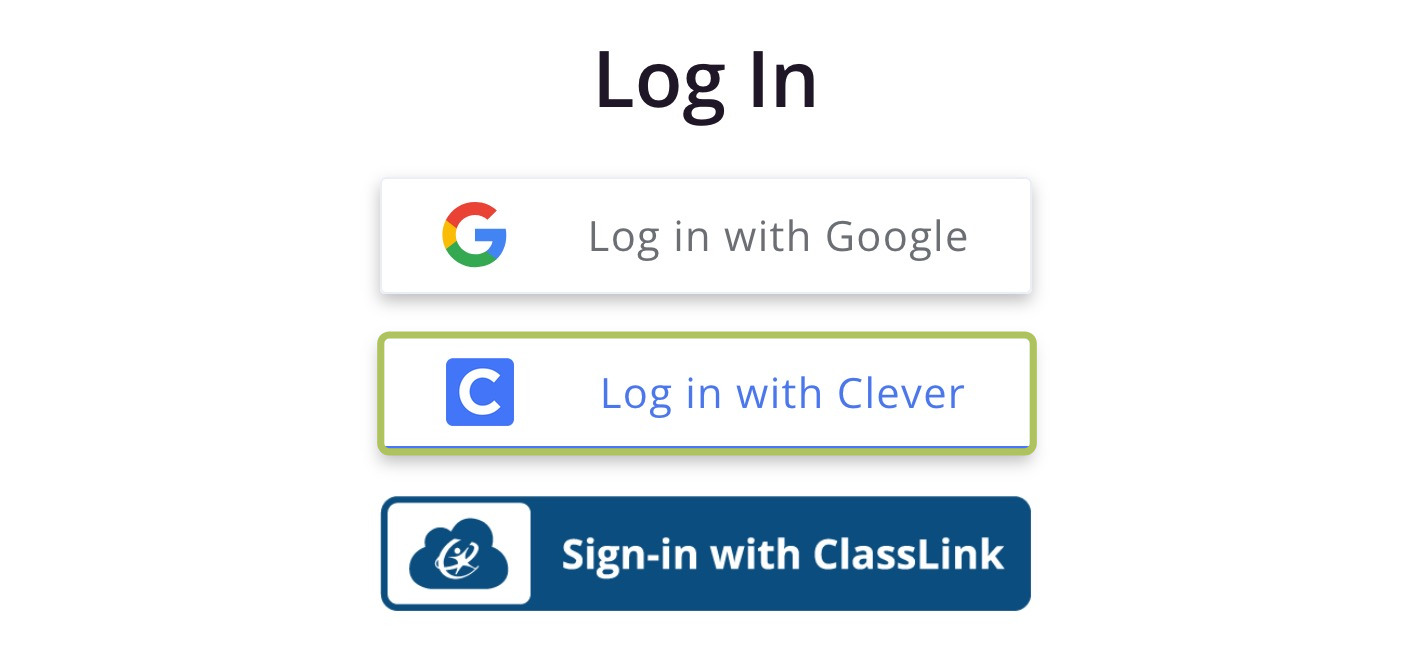
It's possible that a student's account is connected to Clever even if your classes are not imported from Clever as they may have been imported by another teacher. You can check if a student's account is connected to Clever by checking the Integrations column on the Manage Students page for their class. If their account is connected to Clever, you will see the Clever logo.
Student accounts imported from ClassLink
This section is intended for School Essentials PRO and PRO Plus customers.
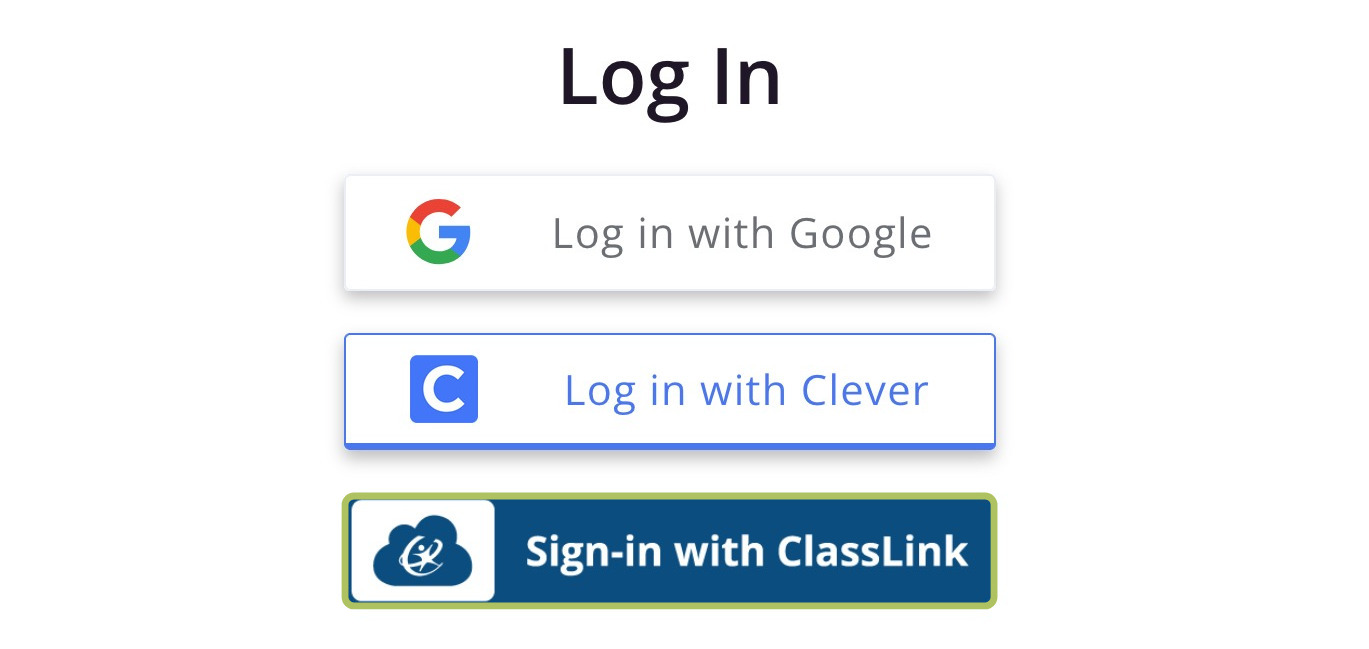
If your classes are imported from ClassLink, all students in your ClassLink-imported classes will be able to log in with ClassLink. Students can log in with ClassLink by clicking CommonLit icon on their ClassLink LaunchPad or by going to www.commonlit.org/user/login and choosing the Sign-in with ClassLink option.
Student accounts connected to Canvas
This section is intended for School Essentials PRO and PRO Plus customers.
When you import a course from Canvas, student accounts will automatically be connected to Canvas. Additionally, student accounts will become linked to Canvas if they access a CommonLit assignment linked to Canvas, even if their class in CommonLit is not imported from Canvas. You can confirm a student's account is connected to Canvas by checking the Integrations column on the Manage Students page for their class. If their account is connected to Canvas, you will see the Canvas logo.
CommonLit does not have a Log in with Canvas option on its login page. However, when students click on a CommonLit assignment from Canvas, they will most often be logged directly into CommonLit. If it is their first time accessing CommonLit that year, they may see a CommonLit log in screen where they can choose to log in with Clever, Google, or manually using their CommonLit email or username and password.
If students get stuck on this screen, you can always reset their CommonLit password and look up their CommonLit username on your CommonLit account. You can find directions on how to do so in the section on manually-created accounts.
Interested in integrating CommonLit with ClassLink, Clever, or Canvas at your school? Check out School Essentials PRO to save time and get set up quickly. Learn more about CommonLit's integrations here.