
What is a Culminating Task, and where do I find it in a 360 unit?
The Culminating Task is the summative assessment for each CommonLit 360 unit. Across the units in each grade level, students will encounter a variety of tasks, including essays, projects, presentations, and more to allow for a wide range of skill development and student expression.
The individual lessons in a 360 unit are designed to build toward the Culminating Task. Each lesson aims to equip students with the skills necessary for successfully accomplishing the Culminating Task. Additionally, each unit includes lessons dedicated to completing and refining the Culminating Task.
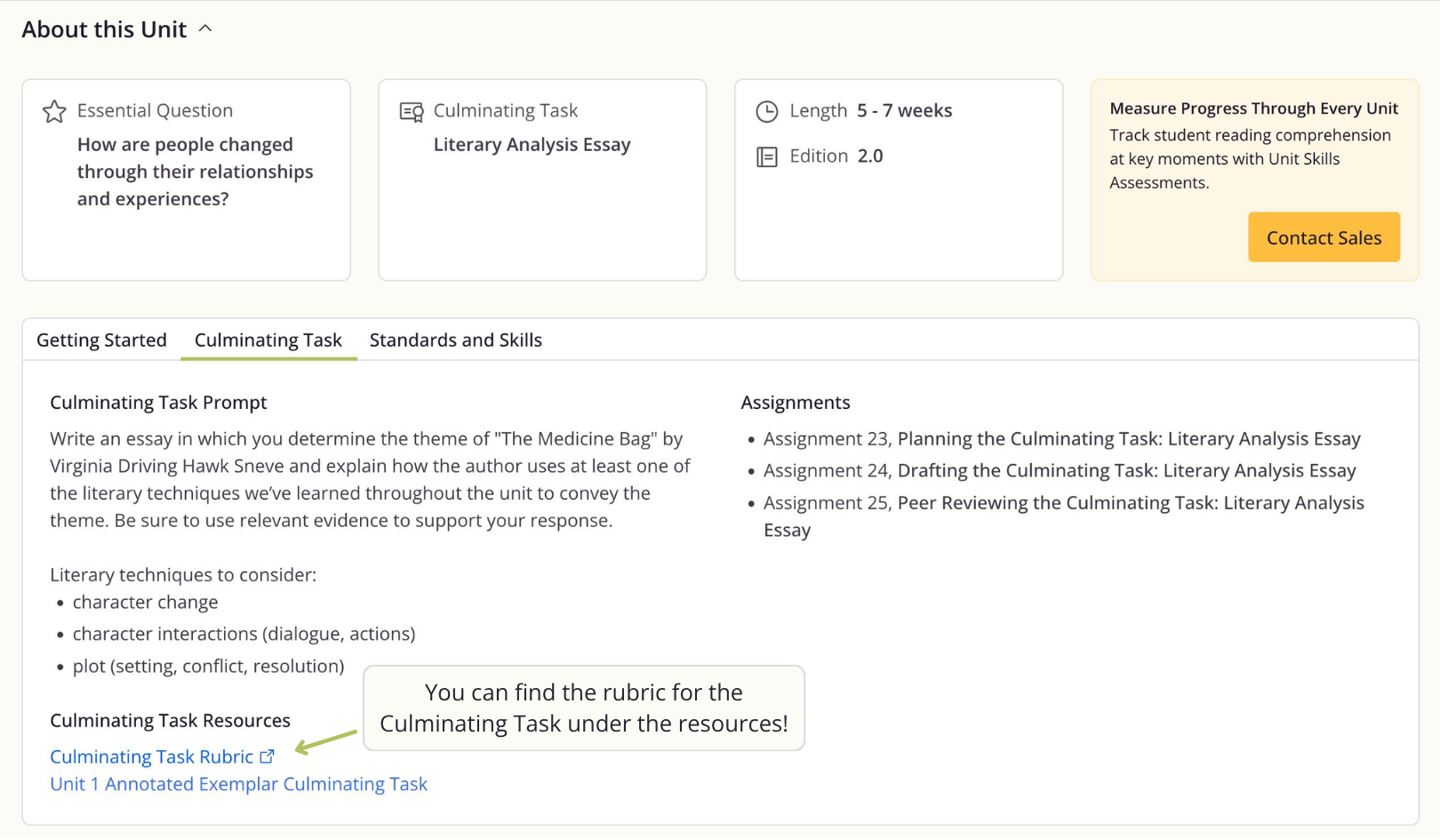
You can find information about the Culminating Task in the About this Unit section at the top of the Unit page. Simply click "Culminating Task" to the right of "Getting Started" to find:
- The prompt
- The rubric
- A list of assignments
- An annotated exemplar (available for School Essentials PRO Plus customers)
- 🆕 The option to track Culminating Task completion
🆕 Tracking the Culminating Task
You can also now track student completion of the Culminating Task. While students will not complete the task directly on CommonLit, this will allow you to keep track which students have completed the Culminating Task alongside the other lessons from the unit.
To track Culminating Task completion, go to the Unit page, select Culminating Task, and click Start Tracking. Then, select which class(es) you would like to track completion for, set the due date, and click Start Tracking.
Once you have done so, you will see the an assignment listing for the Culminating Task on your Assignments page. Click on the name of the Culminating Task on your list of assignments to view the Culminating Task Dashboard. There, you can complete the following actions:
- Mark a student as Complete in the Assignment Status column
- Exempt a student using the Action column
- Mark all students complete or incomplete
- Edit the due date by clicking the pencil icon
- Delete the Culminating Task by clicking the trash can icon