How do I view assignment data in the Administrator Data Dashboard?
Overview
Access to the Administrator Data dashboard allows you to view assignment data across your school or district. Additionally, if your subscription includes access to Unit Skills Assessment data, you will be able to view this data in the dashboard as well. You will be able to see a student's data once they have submitted an assignment or Unit Skills Assessment and their short-answer response has been graded (if assigned).
If you have District-Level access, you will be able to view data for all schools in your district's subscription. Alternatively, if you have School-Level access, you will be able to view the data for whichever schools have been enabled on your CommonLit account. All users with administrator data access will be able to view assignment data by school, teacher, class, or student. Users with access to data for multiple schools will be able to view data for a specific assignment across those schools.
In this article, we will cover:
Locating assignment data
You can find data for an assignment two ways. If you know the specific assignment you want to view, using the filters will allow you to find the data quickly. If you are looking to see what teachers are assigning, you can use the Most Assigned Lessons section to find assignment data.
Using embedded links
From the main page of the Administrator Data Dashboard, you can view the most frequently assigned lessons at any given time by scrolling down to the Most Assigned Lessons table in the Assignments section. Simply click the name of an assignment in the table to navigate to the School or District-Level Assignment Details page.
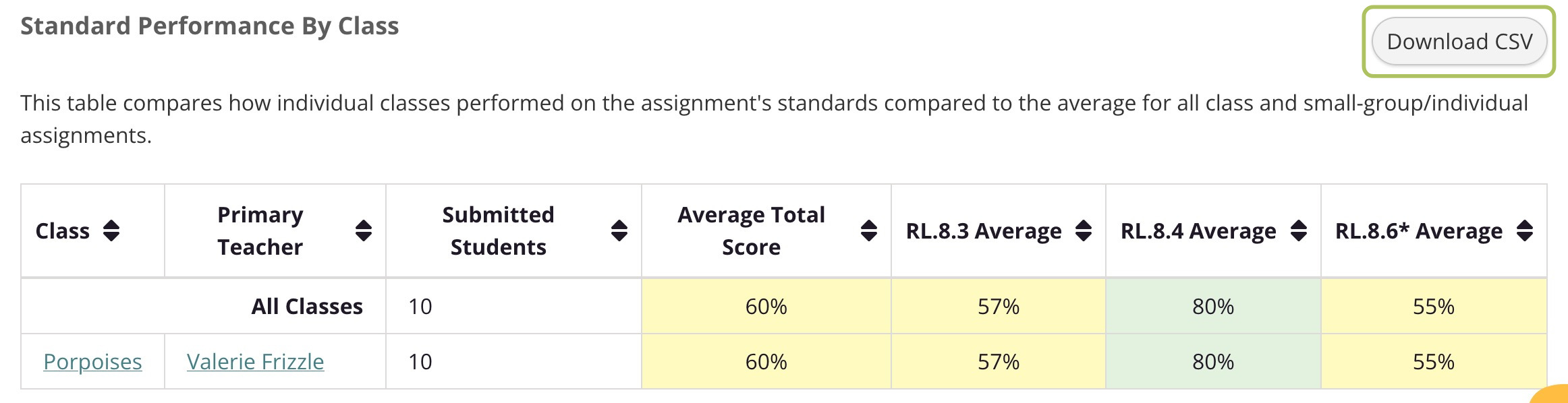
At the bottom of each Assignment Details page is a Standards Performance table. You can use this table to drill down into the assignment data to view performance on the assignment for specific schools, classes, teachers or students. See below for how you can use the table on each page to reach more granular data:
- District-Level Details Page → Select a school
- School-Level Details Page → Select a teacher or class
- Teacher-Level Details Page → Select a class
- Class-Level Details Page → Select a student
Alternatively, if you want to select a school, teacher, class, or student first in order to see the associated assignments, you can use links s well. If you are a multi-school administrator, you can click a link for a school on the main page of the Administrator Data Dashboard. Once you are on a School page, you can select a lesson in the Most Assigned Lessons section. Or, from a School page, you can click a teacher's name to view their data. Then you can select a class name. Finally from a Class level page, you can click a student's name to view assignment data for that student.
Using filters
If you're looking for data for a specific assignment, or if you want to view data for a specific school, teacher, class, or student, start by clicking Filters at the top of the dashboard.
If you're looking for data for a specific assignment, use the Assignment filter to select an assignment. You can also start typing the name of an assignment to select it more quickly. Once you've chosen an assignment, add any other filters you want and click Update filters.
You can also use filters to view data for a specific school (if you are a multi-school admin), teacher, class, or student. You can also apply a date range if you want to view data for a specific time period. Please note, some filters can only be used once another filter has been selected. To select a teacher or student, you will first need to select a school, and to select a class, you will first need to select a teacher. (If you only have access to data for one school, the school will be automatically selected in your filters.)
💡Tip: You can re-open the filters from any page in the dashboard by scrolling up and clicking Filters. To navigate to a different assignment or the data for a different school, class, teacher, or student, open the Filters view and choose new filters to apply.
ℹ️ If your school or district has access to Unit Skills Assessments, you will also see these listed in the Most Assigned Lessons section and be able to filter for them using the Assignments filter.
Viewing assignment data
At a Glance
When you are viewing assignment data at any level (district, school, teacher, class, or student), you will see an At a Glance section at the top of the page. This section includes the Overall Assignment Average (an average of students' overall scores), Multiple Choice Average, and Short Answer Average. Additionally, you can see the Assignment Status by class and student to get a quick snapshot of where students are in the assignment completion process.
Note: On the Class-Level Assignment Details page, the Status by Class section is omitted, and on the Student-Level Assignment Details page, the Status by Student section is omitted.
Assessed Standards
When viewing assignment data for a district, school, teacher, class, or student, you will also see an Assessed Standards section. This section includes a breakdown of all standards represented in the Assessment Questions (or scored questions) of a lesson. Each standard that is assessed will be listed, and below each you will see any questions tagged with that standard, the Question Type (Multiple Choice or Written Response), and the average for performance on that standard across the questions listed.
Additionally, you can scroll down in this section to reach the Standards Performance table. This table provides the average performance for each standard assessed in the assignment. The breakdown you will see depends on the page you are on. For example, if you are on the School Level Assignment Details page, you will see Standards Performance by Class, but if you're on the Class Level Assignment Details page, you will see Standards Performance by Student.
Written responses (Class-level 360 only)
You can view students' responses to short answer Assessment Questions for 360 Reading Lessons and Unit Skills Assessments from the Class-Level Assignment Details page. To view responses, look for the Written Response question in the Assessed Standards section and click the Written Response hyperlink. This will take you to a page where you can view students' responses, their score, and any feedback provided by the teacher.

Missing assignment data
If you load an Assignment Dashboard in the Administrator Data Dashboard and don't see the data you expect, there are a few things to consider.
The Assignment Dashboard is filterable by date range, school, and version of the assignment. Be sure your date range is accurate and you are not filtering by the wrong school. Most likely, you need to choose a different version of the final assignment from the version dropdown in the top-right of the Dashboard. The default is to show you the most recent version, but your data might belong to an older version of the assessment.
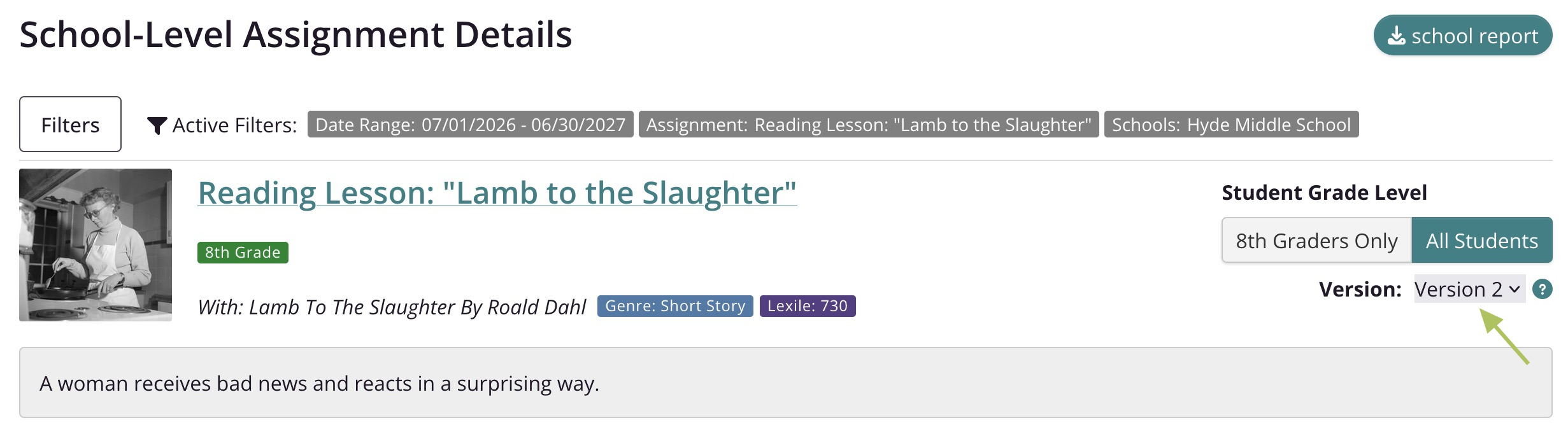
If teachers assigned a lesson without the final assessment, you will see that reflected in the number of student assignments shown in the status charts and the school downloads. However, there will be no overall scores or standards averages for these students.
The default is to show you data for all students rather than grade-level data. However, if you were previously filtering by grade-level data ("8th Graders Only" in the above image) on a different assignment, try switching from grade-level data to "All Students" in the data toggles in the top-right.
Additional tips
Viewing historical data
Users with access to administrator data can view the data from previous school years. This can be helpful for comparing how students perform from one year to the next as well as providing teachers with additional context about students' performance and progress.
In the Administrator Data Dashboard, you can use the School Year filter to quickly filter data. To view the data from a previous school year, click Filters at the top of any page. Then, click the drop down under School Year to select the year you want to view, and click Update filters. You can also combine the School Year filter with other filters such as the School or Teacher filters.
Downloading reports
Reports can be downloaded from Assignment Details pages throughout the Administrator Dashboard. These reports are provided in a spreadsheet format and will download as either a .CSV or .XSLX file depending on the report.
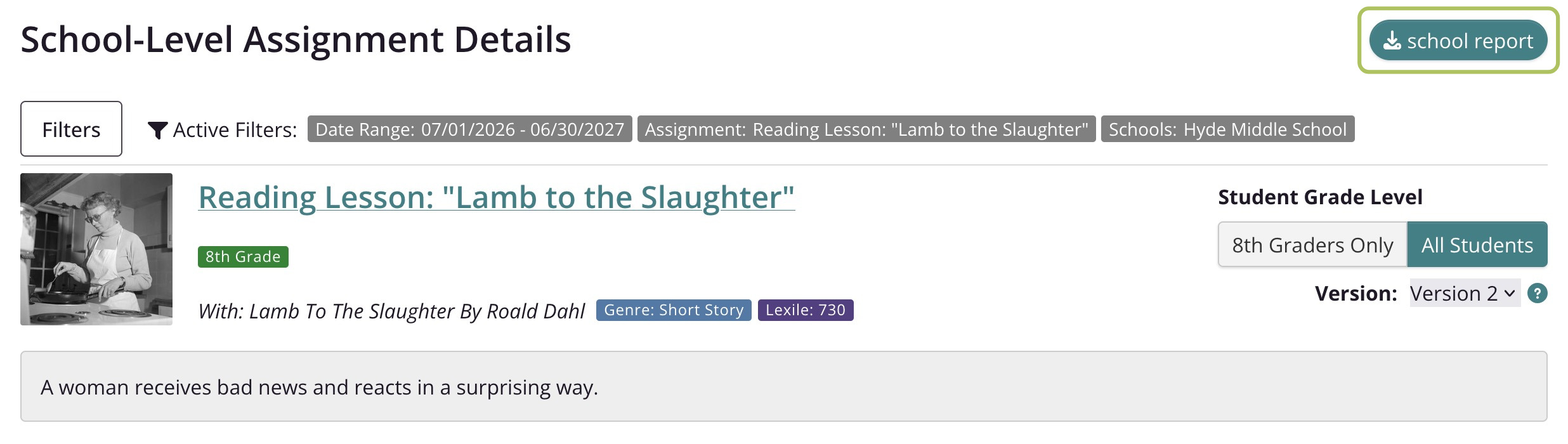
To download a general report for a specific assignment, click the button that includes "report" in the top right corner of the Assignment Details page (e.g. School Report). When you download a District, School, Teacher, Class, or Student report for a specific assignment, the report will include each student's:
- Submission date or Assignment Status (e.g. Not Started)
- Overall Score
- Multiple Choice Average
- Short Answer Average
- Individual standards averages
- Performance on specific questions
You can also click the Download CSV button in the Standards Performance table to download a report that only includes the overall score and performance on each assessed standard.