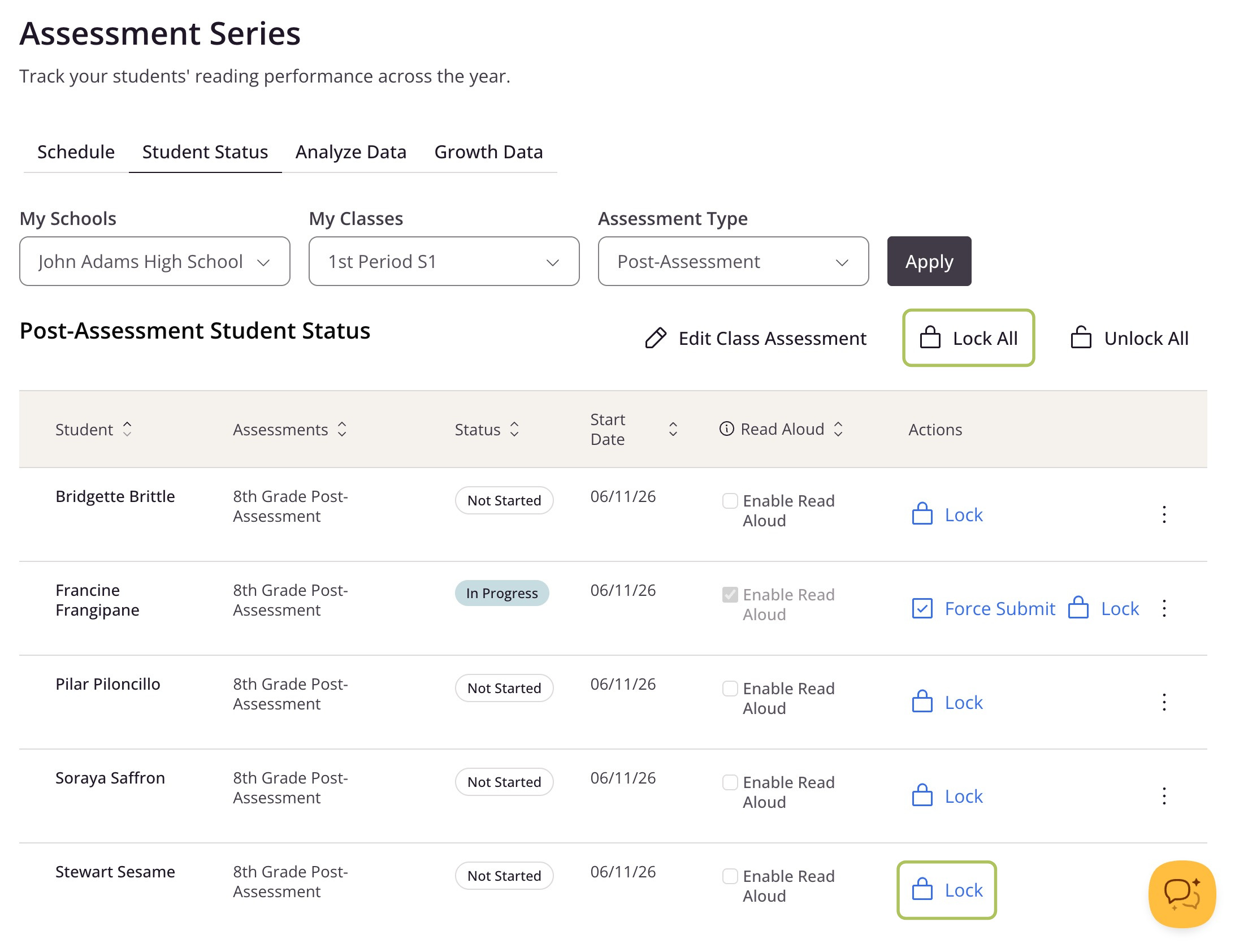
How do I lock an Assessment Series test or the Free Reading Assessment to prevent students from working on it outside of class?
You can lock assessments for specific students or for an entire class in order to prevent students from resuming the test outside of the class period. Please note that the ability to lock an assessment only becomes available once the test's start date has arrived.
To lock an assessment:
- Click My Classes (the teacher) in the menu on th eleft
- Choose the Assessment Series tab and click on the name of the test or View Student Status
- From the Student Status page, you can lock the assessment for the entire class or for specific students:
- To lock assessments for the entire class, click Lock All above the table
- To lock the assessment for a specific student, locate the student in the table and click Lock under the Actions column
- Confirm by clicking the Lock assessment button in the window that appears
Please note that locking an assessment saves all existing progress for students who had not yet submitted and removes the assessment from their My Assignments page.
When you are ready for the class to resume their assessment in a proctored testing environment, simply click Unlock All next to Lock All to unlock the assessment for all students, or click Unlock in the Actions column for a specific student. This will restore your students' assessments with their saved progress and they will be able to access the assessment from their My Assignments page.